Resultados da pesquisa
Search this site
341 results found with an empty search
- Export of sub-movements of a batch | nBanks
nBanks achieves ISO 27001 certification for Information Security Management. 15 July 2025 Export of sub-movements of a batch Export of sub-movements associated with a batch to Excel. nBanks allows the export of sub-movements associated with a batch, in the Bank Statement and Inflows and Outflows areas. In addition to direct viewing on the platform, this information can now be exported to Excel, facilitating the analysis and external processing of data. Benefits: - Complete detail of sub-movements, for a more in-depth analysis of each banking operation; - Possibility to export to Excel, allowing for more efficient and flexible data cross-referencing; - Support for financial reconciliation, through the extraction of specific and detailed data; - Improved traceability of transactions, with structured access to movements associated with each batch; - Optimization of internal control, accounting, and auditing processes. Available in all geographies. You can try this feature here . Previous Item Next Item
- Multi-level categories, settings and new exports in Cash Flow | nBanks
nBanks achieves ISO 27001 certification for Information Security Management. 13 November 2026 Multi-level categories, settings and new exports in Cash Flow Cash Flow now presents data according to the new multi-level category tree, with an evolution chart, a settings area and new export options. Cash Flow, which shows how the company's treasury data evolves, has been improved. It now presents the data according to the new multi-level category tree , offering a more flexible and detailed analysis that adapts to each user's needs. To improve usability, an evolution chart, a settings area and the option to filter the data by the time period being analysed have also been added. The evolution chart shows the company's Inflows and Outflows and how the opening balances evolve, with a forecast for the following periods. In the settings, users can choose which categories are included in the Cash Flow analysis and the order in which they appear. Excluded categories are shown in Cash Flow as "Other categories". Users can also select which bank accounts and custom accounts are included in the analysis, and can add or remove them at any time. The screen now allows information to be grouped by day, week, month, quarter, half-year or year and filtered by Bank/Account, Cost centre and Counterparty. Additionally, values can be compared with the previous year (N-1), showing the change in value and as a percentage. Users can also search for categories directly in the table and show or hide the Total column, which includes the average per period. Cash Flow now also supports Excel, CSV and PDF exports with the same level of detail, the same order and the same totals as shown on screen. Reports can also be exported based on the Maps defined by the company. This functionality is available to customers with the "Cash Flow" add-on . For multiuser environments, access to the data continues to depend on the permissions assigned. With these improvements, treasury analysis becomes more flexible and detailed, adapted to each company's category structure. It also becomes easier to monitor cash flows at the level of detail required and to produce reports aligned with the organisation's management models. Benefits: Treasury analysis becomes more flexible and detailed , adapting to each company's category structure . Monitor cash flows at the level of detail the business requires. Produce reports aligned with the organisation's management models . Available in all geographies. You can try this feature here . Previous Item Next Item
- Managing business credit cards spending with Open Finance | nBanks
nBanks achieves ISO 27001 certification for Information Security Management. Managing business credit cards spending with Open Finance Open Finance allows companies to aggregate business credit cards from multiple providers into a single platform, making it easier to monitor spending and maintain control over company expenses. Credit cards play an important role in many companies’ daily operations. Teams often rely on them to manage travel expenses, operational purchases, software subscriptions, and other business costs. As organisations grow, the number of corporate cards tends to grow as well. Different departments may hold cards issued by different banks or providers, creating a fragmented overview of company spending. Without a central view, finance teams often need to review several statements or banking platforms to understand how credit cards are being used. Open Finance helps bring clarity to this situation. Aggregating card data across providers Through Open Finance integrations, companies can connect credit cards issued by different financial institutions into a single platform. This aggregated view allows finance teams to monitor card activity, spending patterns, and available credit limits in one place. Instead of reviewing individual card statements, teams can analyse company-wide card usage with much greater visibility. Stronger expense control Having a consolidated overview helps businesses detect unusual spending patterns, monitor departmental budgets, and maintain tighter control over operational expenses. For companies with distributed teams or frequent travel activity, this level of transparency can significantly improve financial oversight and expense management. Next Previous
- Open and Change the Budget | nBanks
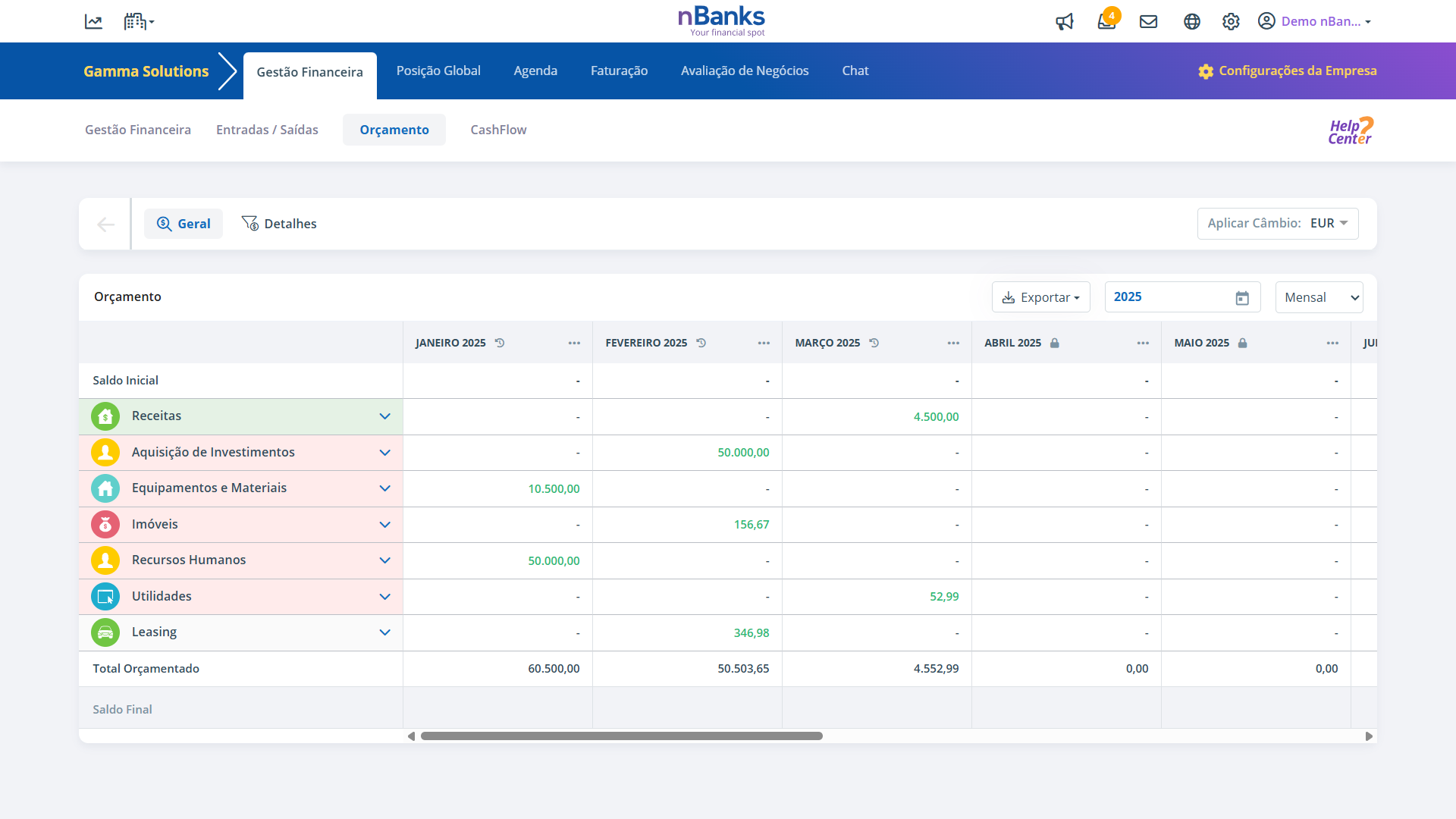
nBanks achieves ISO 27001 certification for Information Security Management. Open and Change the Budget Learn how to open, change, or fill in the Budget. Step 1 In the " My Companies " area, select the desired company. Step 2 In the "Financial Management" tab, choose the " Budget " option. Step 3 If the budget is closed, you should go to the " Details " tab. Step 4 In the Details tab, click on " Open Budget " Step 5 Enter an opening message and click " Confirm ". Step 6 The budget will be open and available to add movements. You should click on " Add Movement ". Step 7 Fill in the respective movement information. Step 8 Click " Save ". The movement will appear: - In the Movement List, in the Details tab; - In the General Budget, in the corresponding month. Previous Item Next Item
- Home | nBanks Public
Page not found. (Error 404) Double check the website address and retype it in the address bar—or return to homepage. Back to Homepage